Troubleshooting
Use the message shown in the workspace as your starting point. SocratIQ distinguishes account access, programme responsibility, module ownership, lifecycle locks, readiness blockers, and active editing locks.
Resolving sign-in or organisation access
Section titled “Resolving sign-in or organisation access”If Microsoft sign-in succeeds but SocratIQ does not open your organisation:
- Confirm that you selected the correct work or school account, not a personal Microsoft account.
- Confirm the email address with your Client Admin.
- Ask the Client Admin to check that your user is active and that your invitation was accepted.
- If the whole organisation is new, ask the SocratIQ contact to confirm that its Microsoft directory and SocratIQ tenant have been paired.
Resolving missing programmes or modules
Section titled “Resolving missing programmes or modules”If a programme or assigned module is missing from your workspace:
-
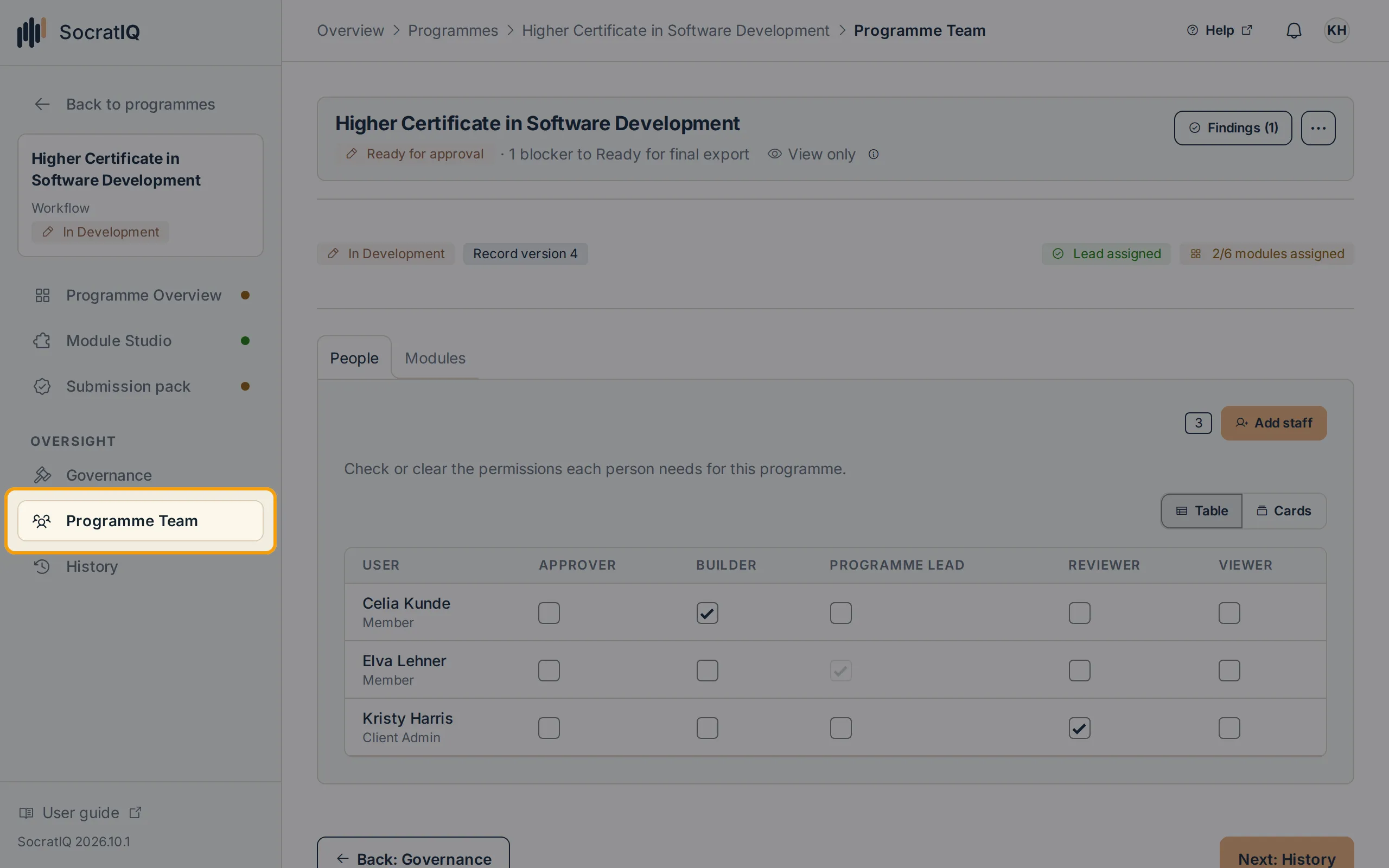
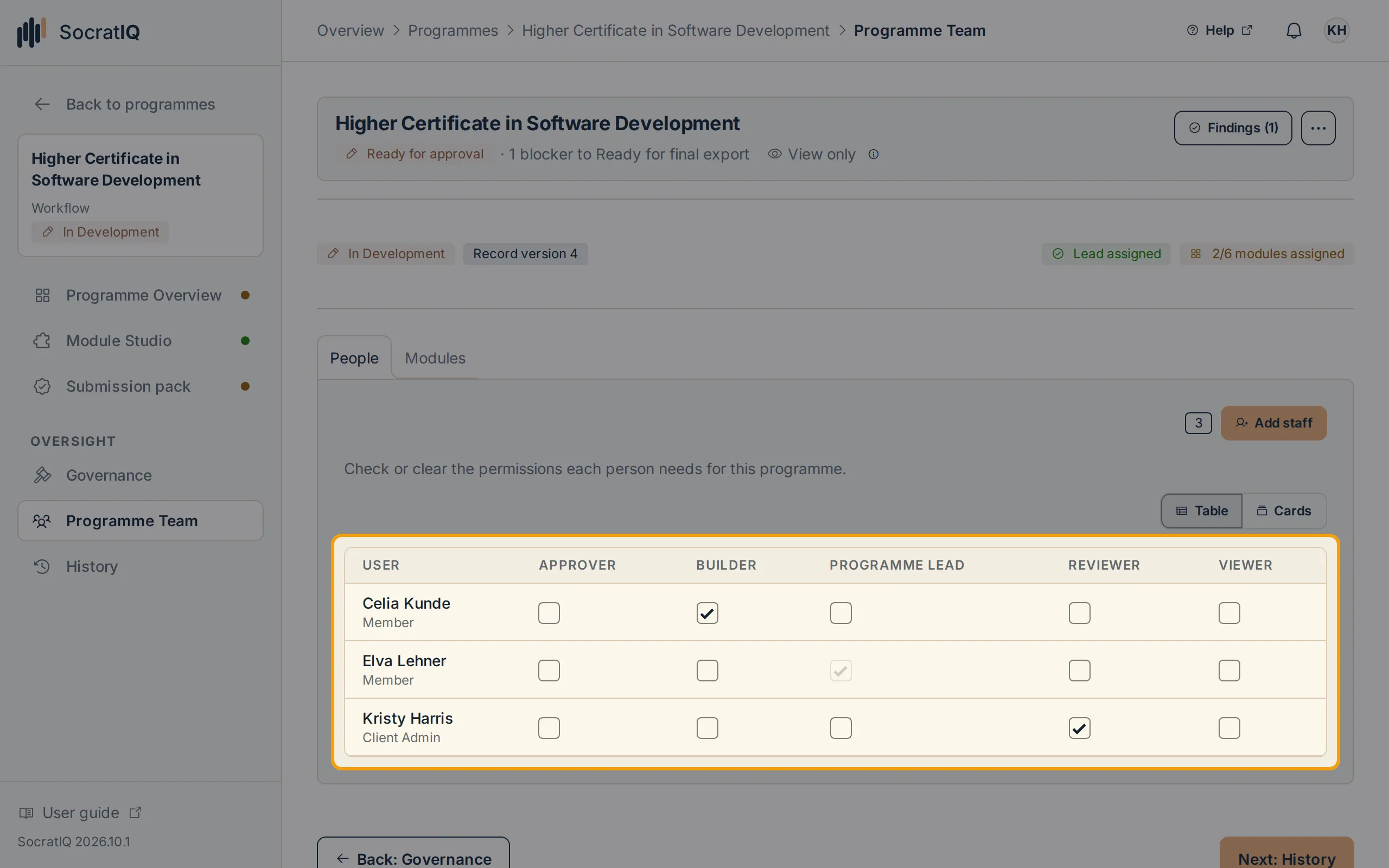
Ask the Programme Lead or Client Admin to open the programme’s team (Users and settings → Programme teams, or Programme Team inside the programme).
-
Confirm that your account has a current responsibility on that programme.
-
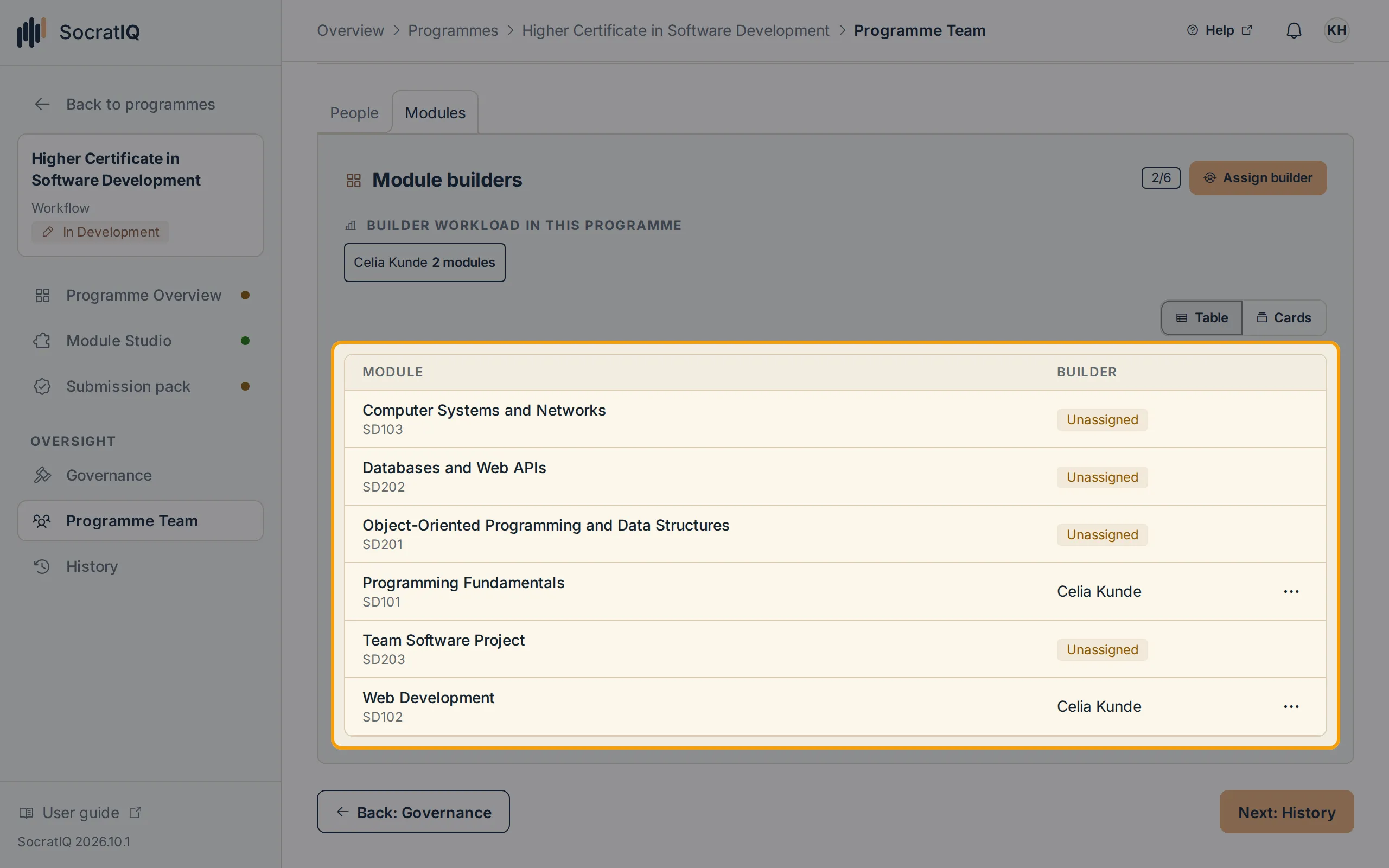
For module editing, confirm that you are a Module Builder and own the specific module.
-
Confirm that the assignment is active and belongs to the correct programme and organisation.
-
Refresh the workspace after the assignment is saved.
Unlocking a locked setup step
Section titled “Unlocking a locked setup step”If a setup section or action button appears disabled:
-
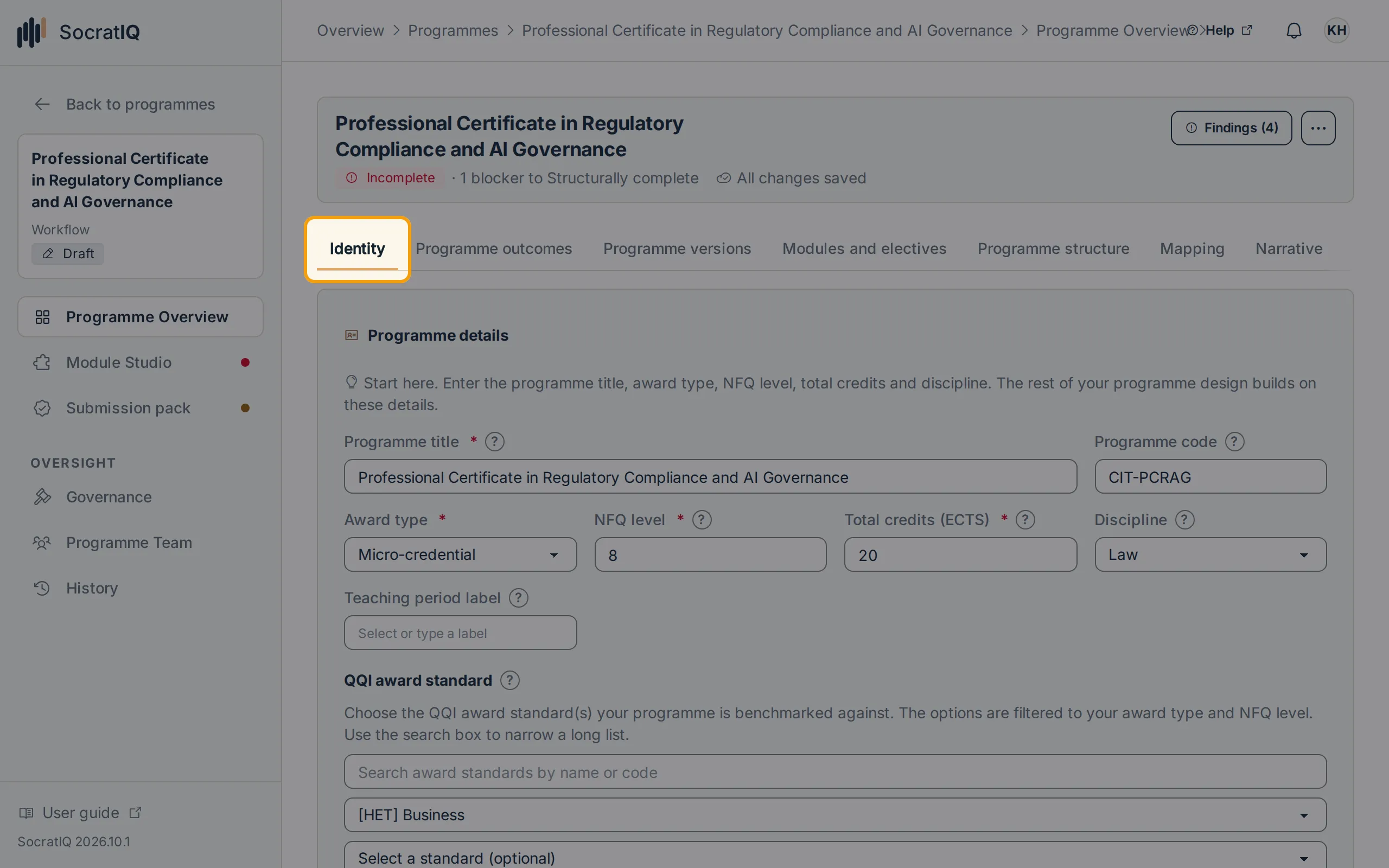
Complete Identity first. Downstream design sections remain locked while Identity has blocking errors.
-
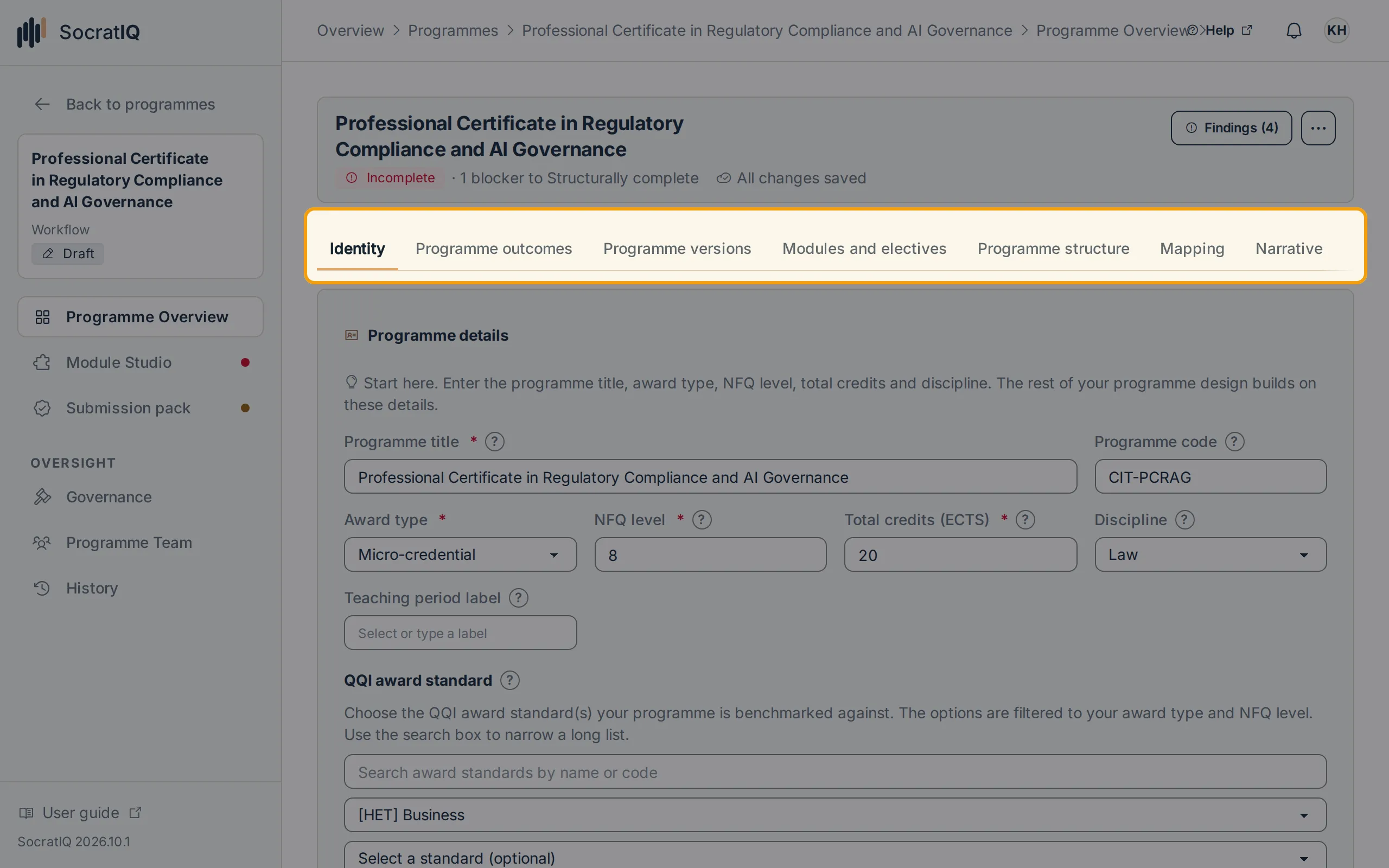
On Programme Overview, complete the tabs marked incomplete: Programme outcomes, Programme versions, and Modules and electives.
-
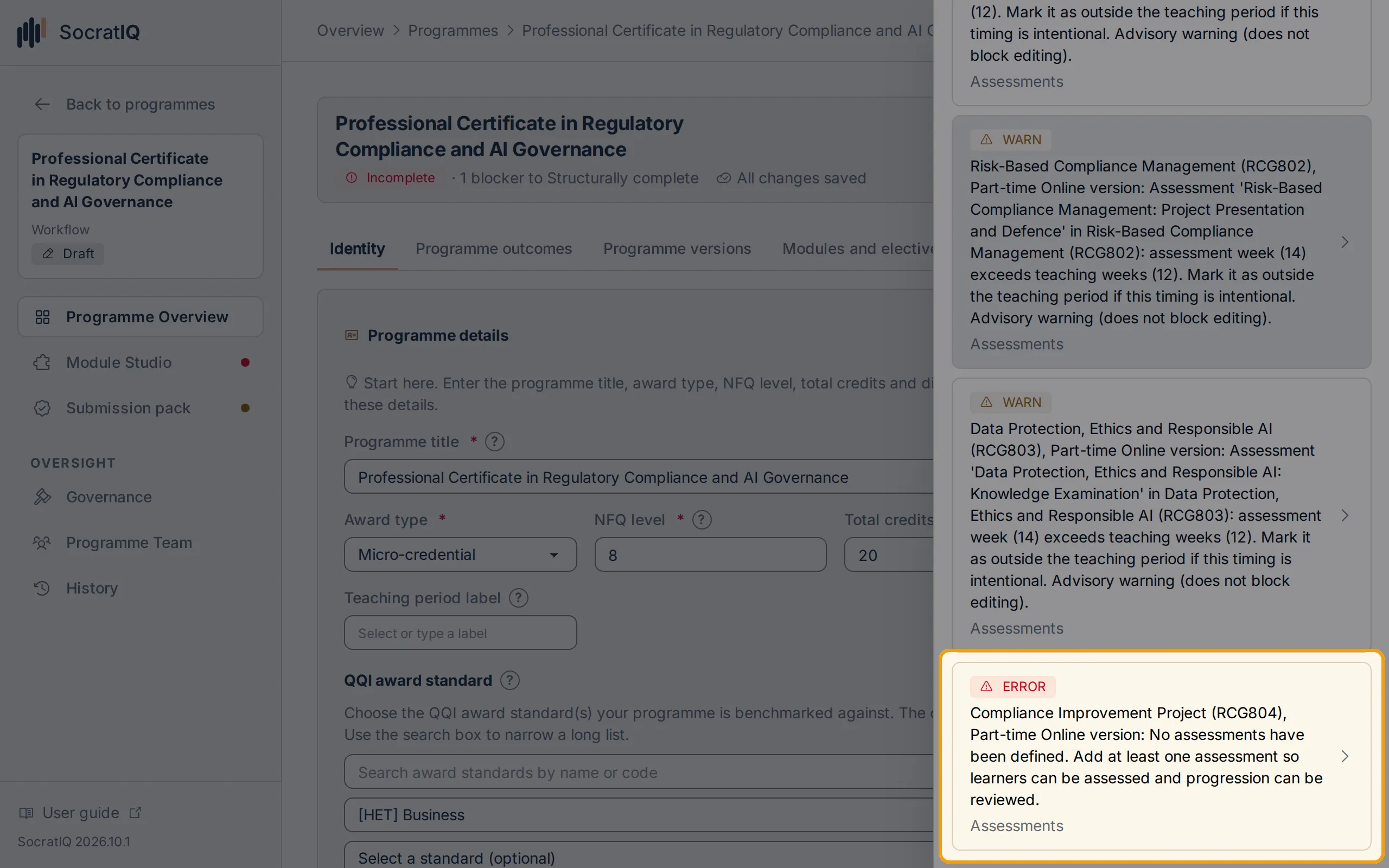
Follow validation links to the affected section and resolve its blocking errors.
-
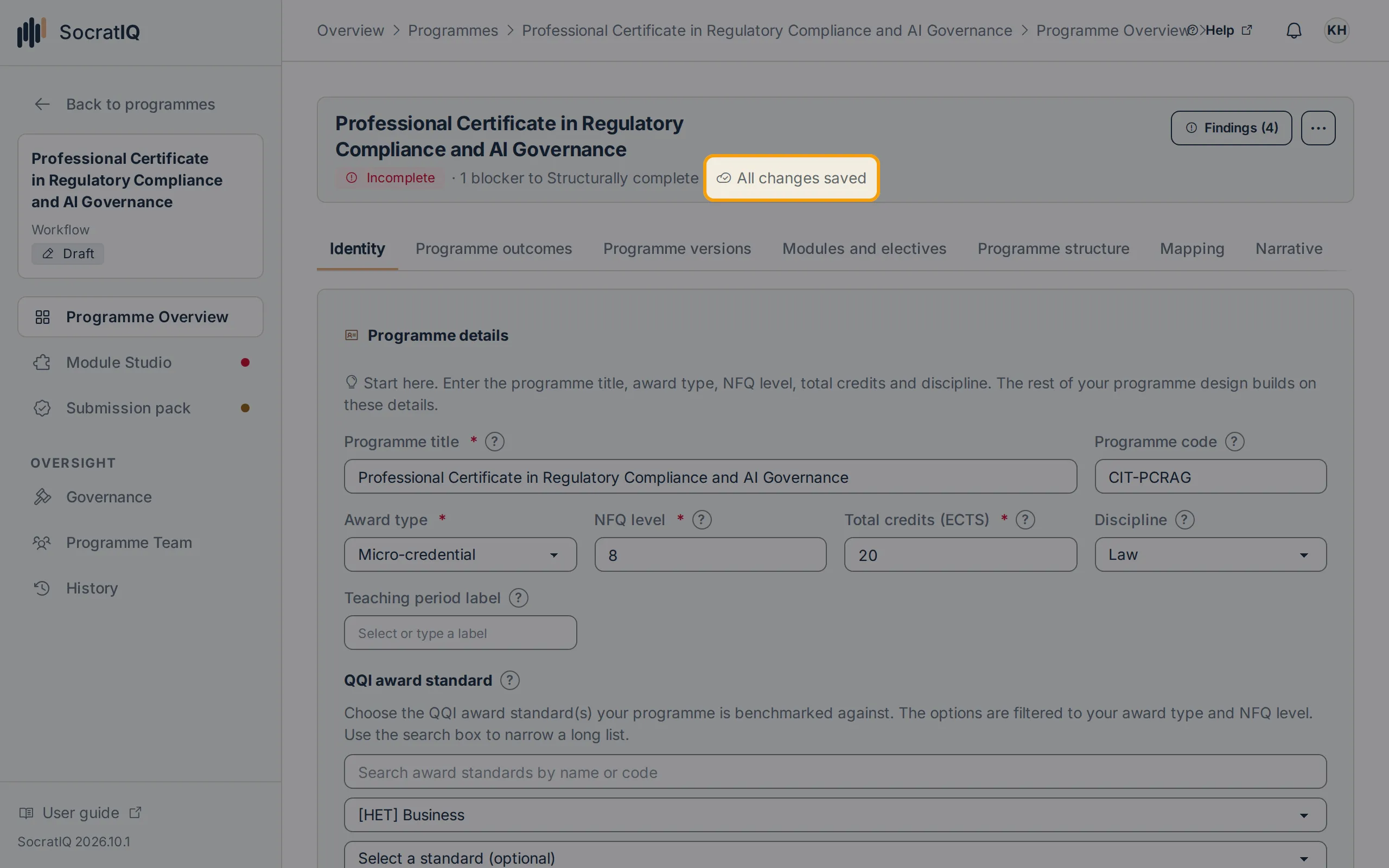
Wait for All changes saved, then recheck the setup or readiness status.
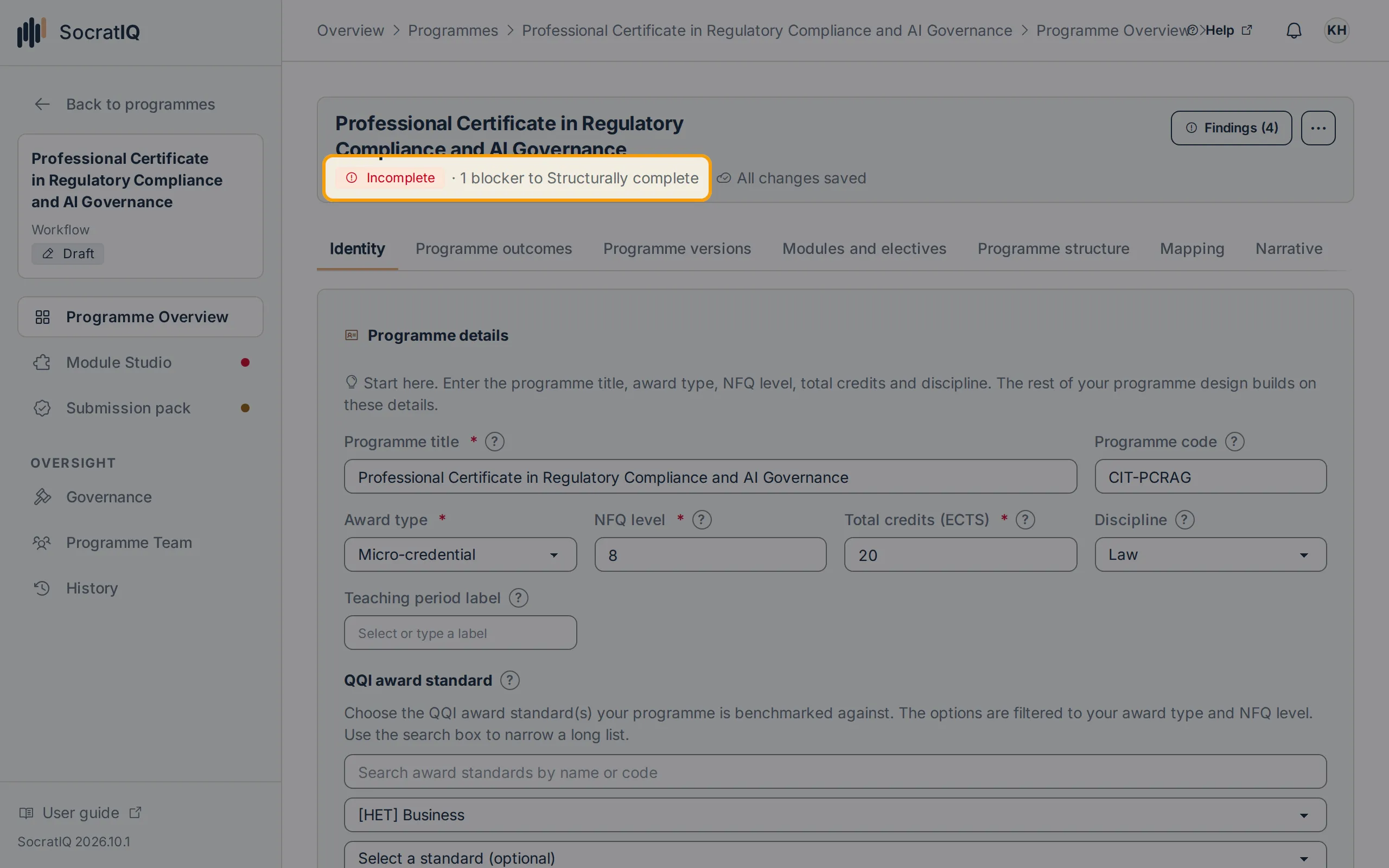
Warnings describe work to review, while errors and readiness blockers can prevent a lifecycle action.
Resolving read-only content
Section titled “Resolving read-only content”A programme or module can be read-only because:
- You have Viewer access rather than editing responsibility.
- You are a Module Builder but do not own that module.
- Another user currently holds the editing lease for the same programme or module.
- The programme is under internal review, awaiting QA approval, approved, signed off, or exported and locked.
For an editing lease, wait for the other editor to finish and release the workspace, then reopen it. For governed content, use the review or amendment workflow rather than trying to change the submitted or approved revision.
Resolving save problems
Section titled “Resolving save problems”-
Check the save indicator at the top of the editor.
-
Do not close the page while it says Autosaving….
-
If an error appears, keep the page open and retry after checking your network connection.
-
Reopen the programme and confirm the latest revision before repeating substantial work.
External standards reference
Section titled “External standards reference”For formal validation requirements and external quality assurance guidelines, see QQI Quality Guidelines.
Resolving submission or approval barriers
Section titled “Resolving submission or approval barriers”If you cannot submit, review, or approve a programme:
-
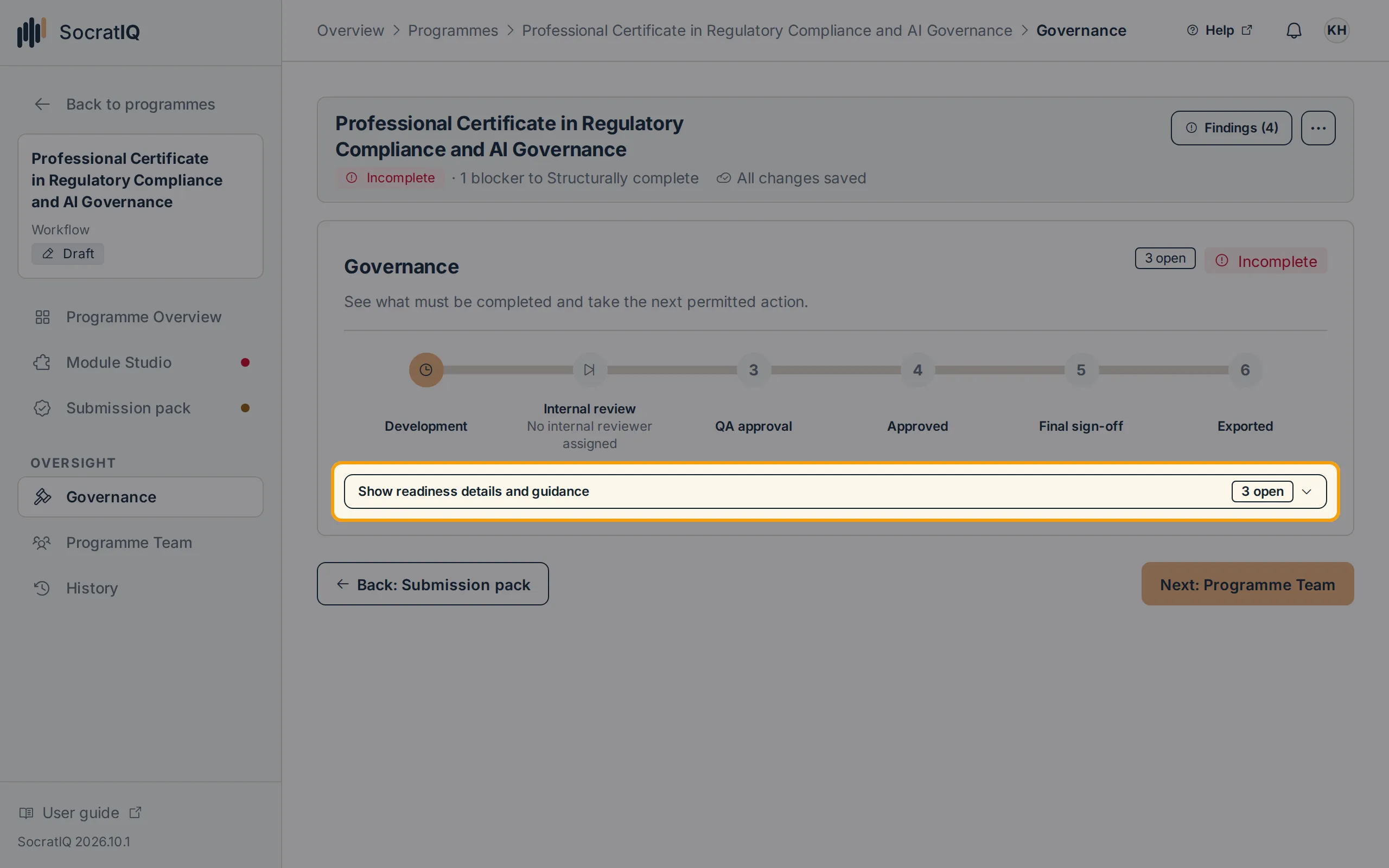
Open Governance from the programme sidebar, select Show readiness details and guidance, and inspect the current readiness state and blockers.
-
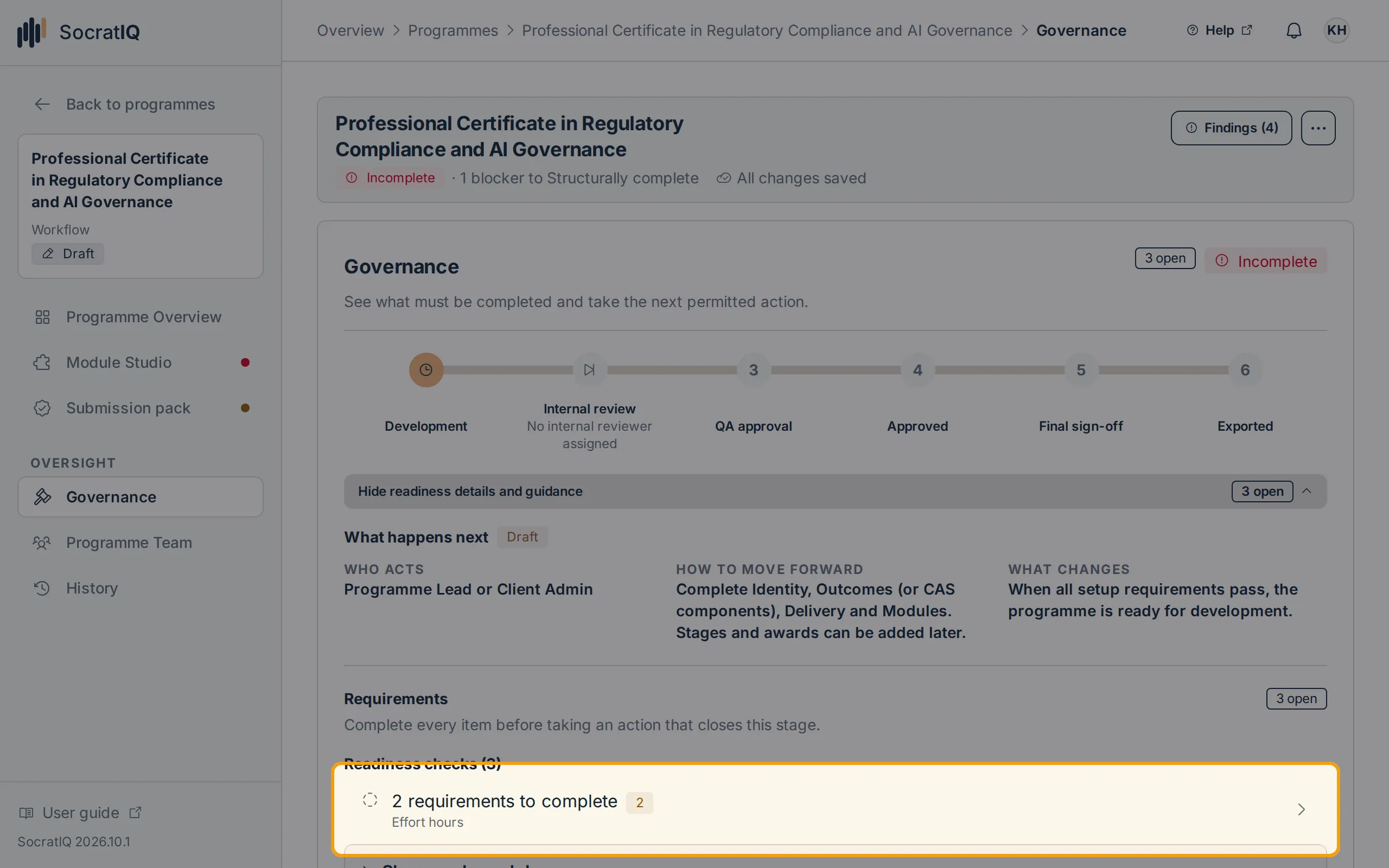
Follow each blocker link to the affected programme or module section.
-
To submit, confirm the programme is Ready for internal review. With at least one active Reviewer the action is Submit for internal review; with none it is Submit for QA approval and internal review is skipped.
-
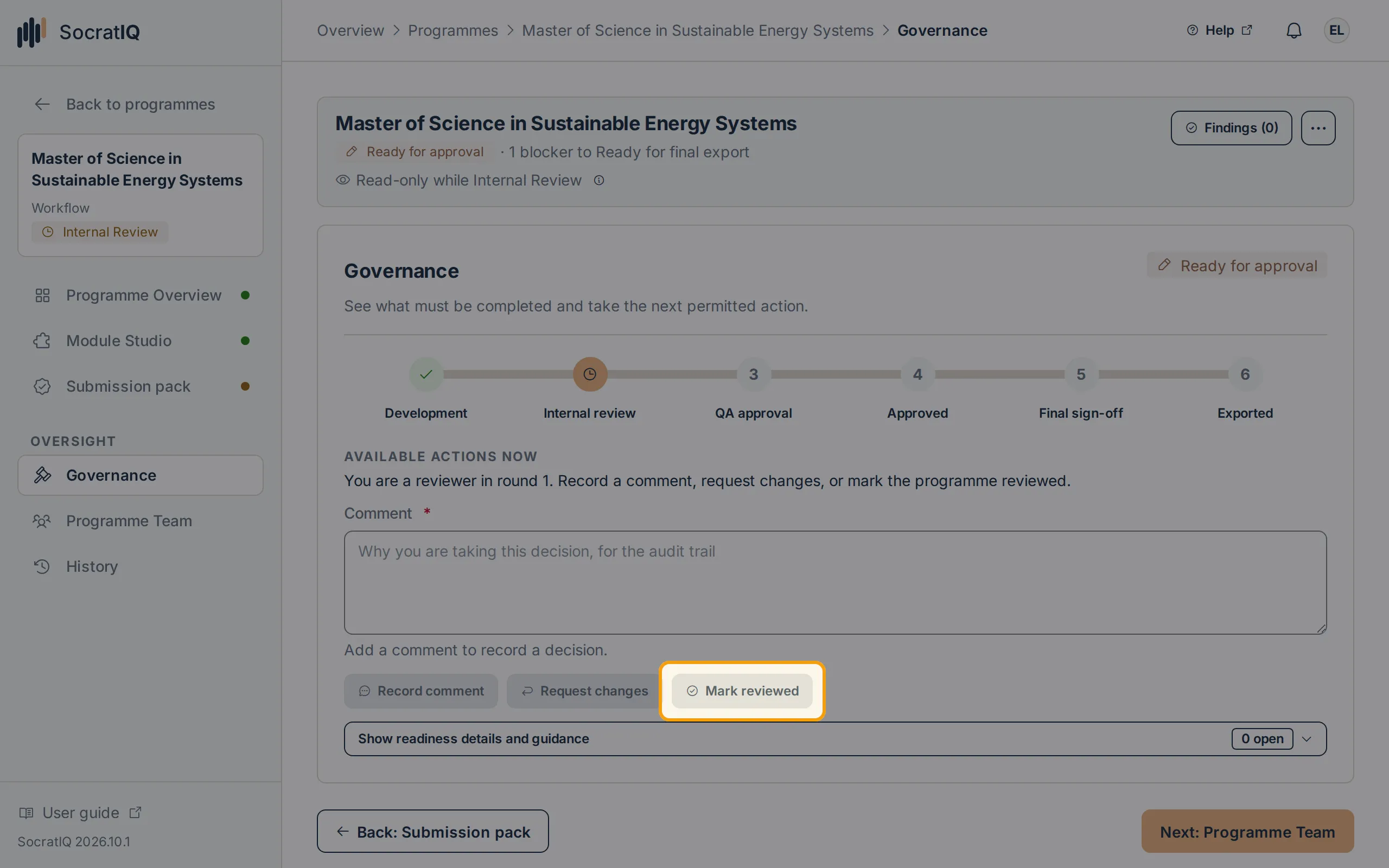
To mark reviewed, resolve all blocking findings and obtain confirmation from every required Reviewer.
-
To approve, confirm the programme is Ready for approval and that you hold the Client Admin account role. An Approver programme responsibility alone cannot approve it.
-
To complete final export, reach Ready for final export.
After signing in, open Programme Review and Approval in the Programmes section of this guide for the complete workflow. For an individual module submission, use Module Review and Approval instead.