Signing In
Sign in with the work or school account your organisation registered with SocratIQ. There is no separate SocratIQ password to remember.
Signing in
Section titled “Signing in”- Open your organisation’s SocratIQ address.
- Select Sign in with Microsoft.
- Choose the work or school account supplied by your organisation.
- Complete your organisation’s normal Microsoft sign-in and multi-factor authentication steps.
- SocratIQ matches your Microsoft directory and account to the correct organisation workspace.
Use the account associated with the email address registered in SocratIQ. A personal Microsoft account or an account from a different employer may authenticate with Microsoft but will not provide access to your organisation’s workspace.
First sign-in
Section titled “First sign-in”Your Client Admin invites you individually; the organisation’s Microsoft directory must be configured for SocratIQ before invitations can be accepted.
If your organisation or account has not been set up, you will see an access or onboarding message instead of the workspace. Send the message and the email address you used to your Client Admin. Do not create a separate password.
Signing out
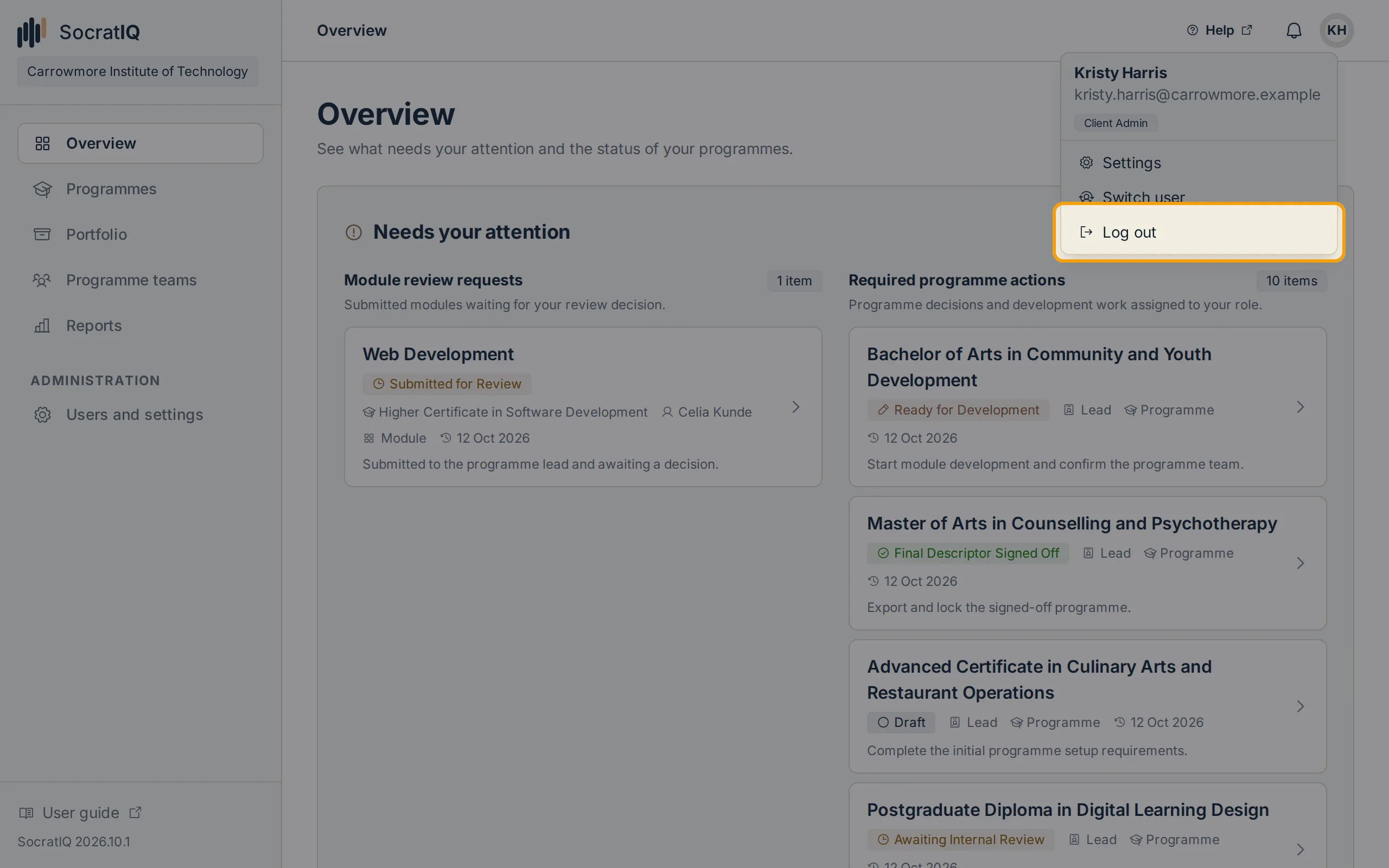
Section titled “Signing out”Open your user menu (your initials, at the top right) and select Log out. This ends the SocratIQ session and returns you to the sign-in page. Your wider Microsoft browser session may remain active, so Microsoft may offer the same account automatically the next time you sign in.
Next steps
Section titled “Next steps”- Open Getting Started to find your assigned work.
- Read Programme Development at a Glance for the full programme journey.
- Read Roles and Access if a programme or action is missing.