Getting Started Overview
The Programme Design Studio is where your organisation builds, reviews, approves, and exports QQI-aligned programme documentation. What you can see depends on your organisation account role and your responsibilities on individual programmes.
Main workspace areas
Section titled “Main workspace areas”Navigate the studio using the main navigation sections:
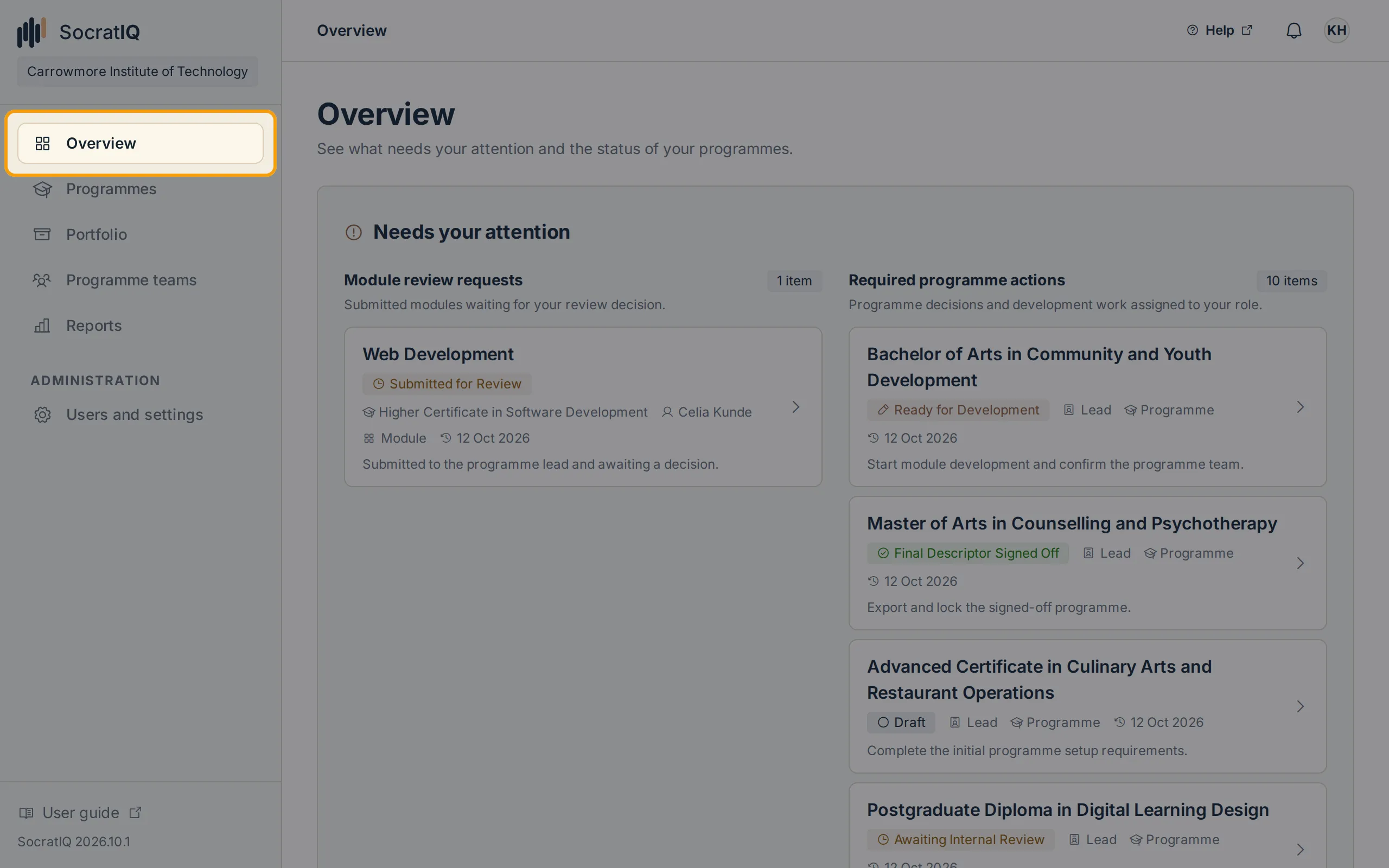
- Overview: See programmes and modules relevant to you, recent activity, and work requiring attention.
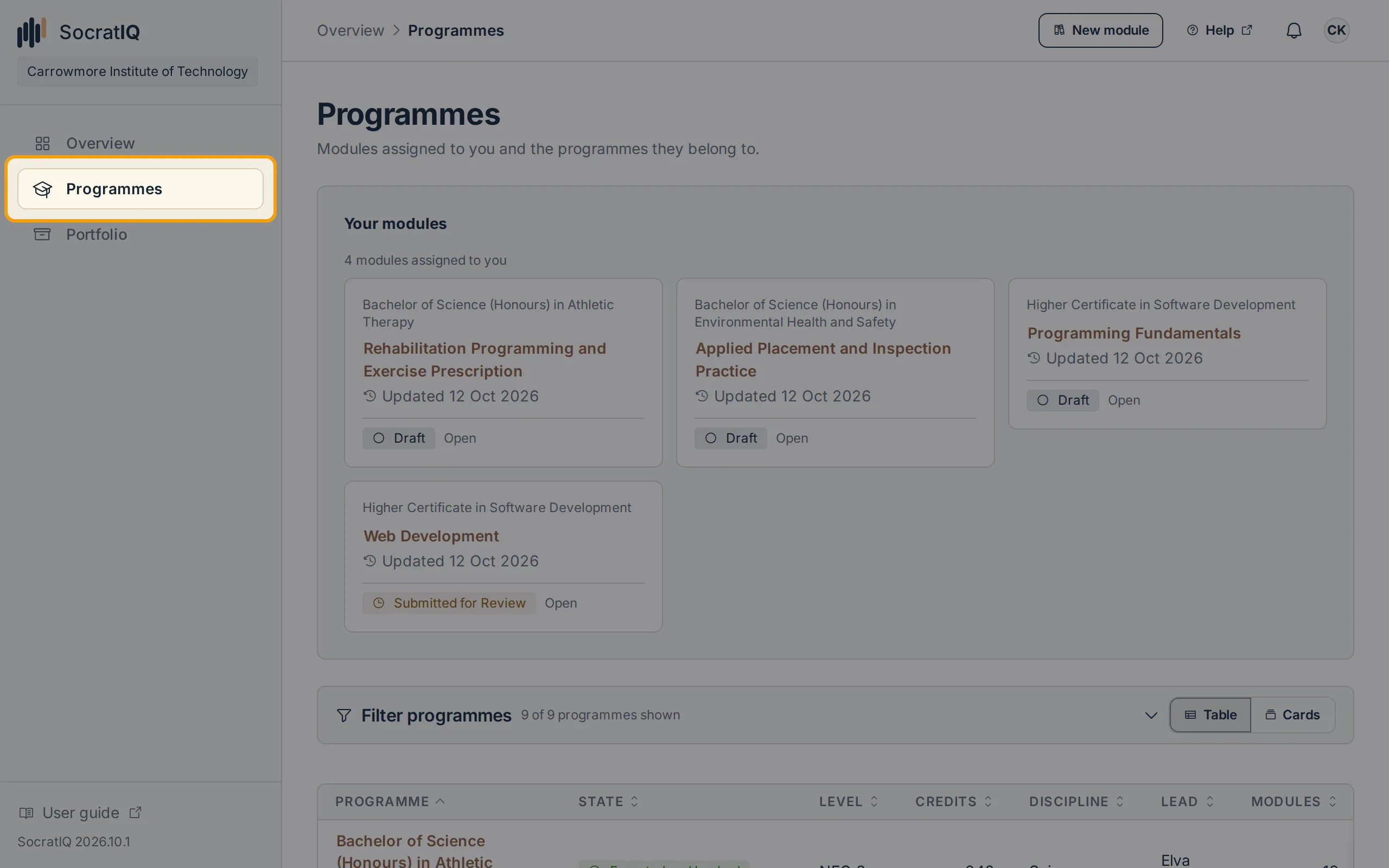
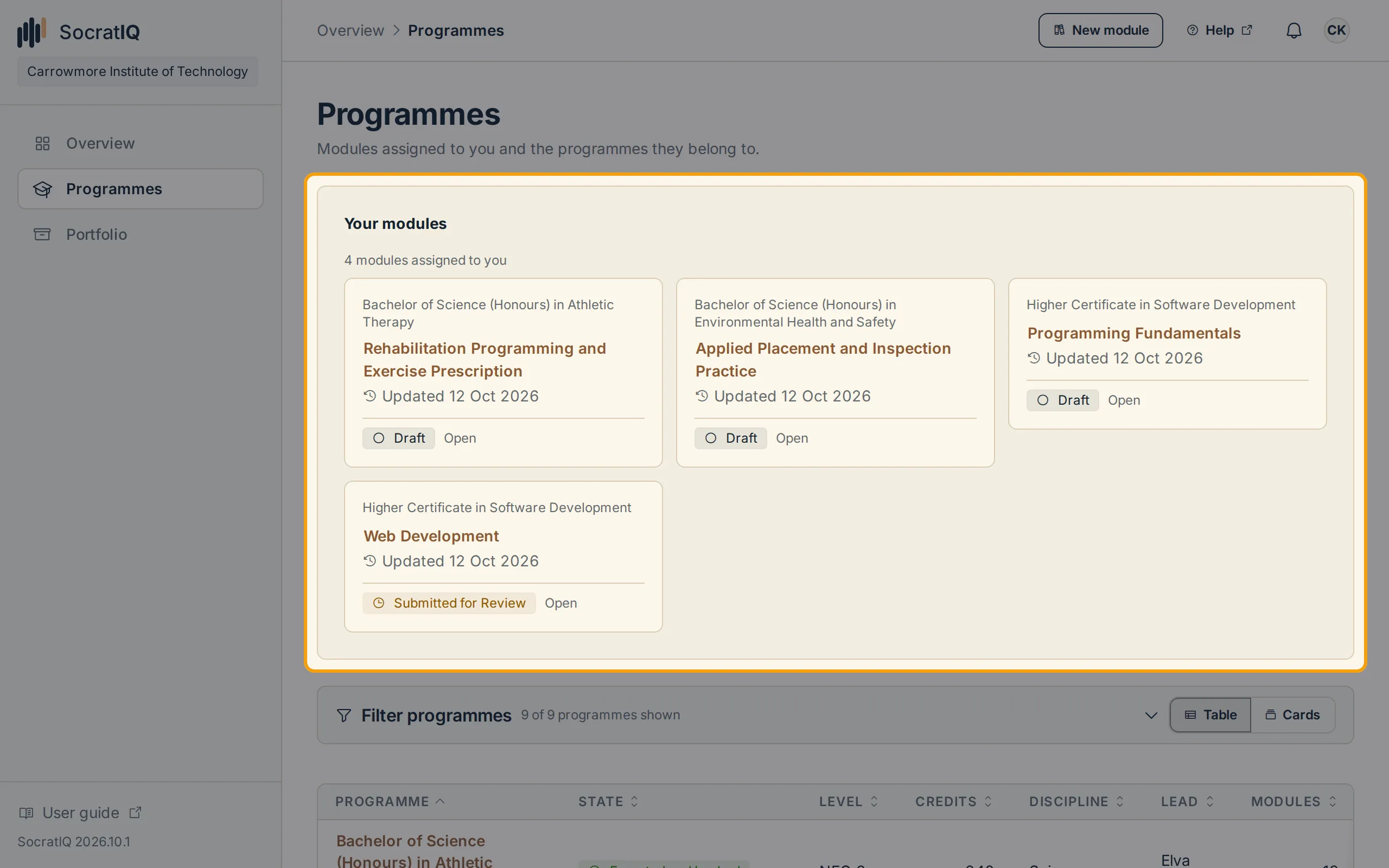
- Programmes: Open a programme you can access, or a module assigned to you under Your modules.
- Programme Team: Inside an open programme, view its responsibilities and module ownership. Programme Leads can also manage delegated access from Programme teams in the main navigation where organisation settings allow it.
Client Admins also receive organisation administration and reporting areas. Members do not see Client Admin-only organisation information.
Checking items that need attention
Section titled “Checking items that need attention”Check your outstanding tasks by following these steps:
-
Select Overview from the main menu.
-
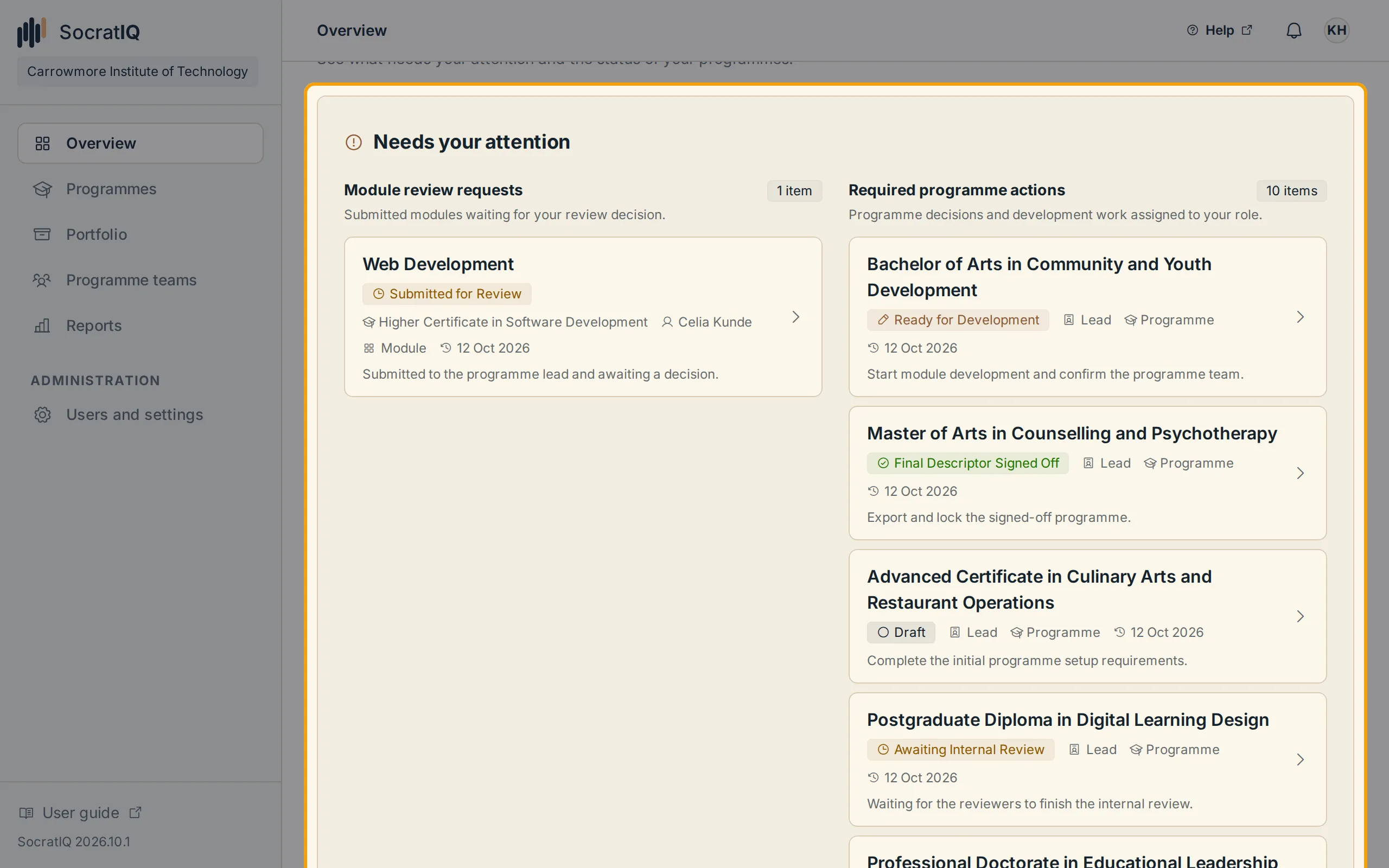
In Needs your attention, review requested changes, module submissions, programme reviews, or approval actions assigned to you.
-
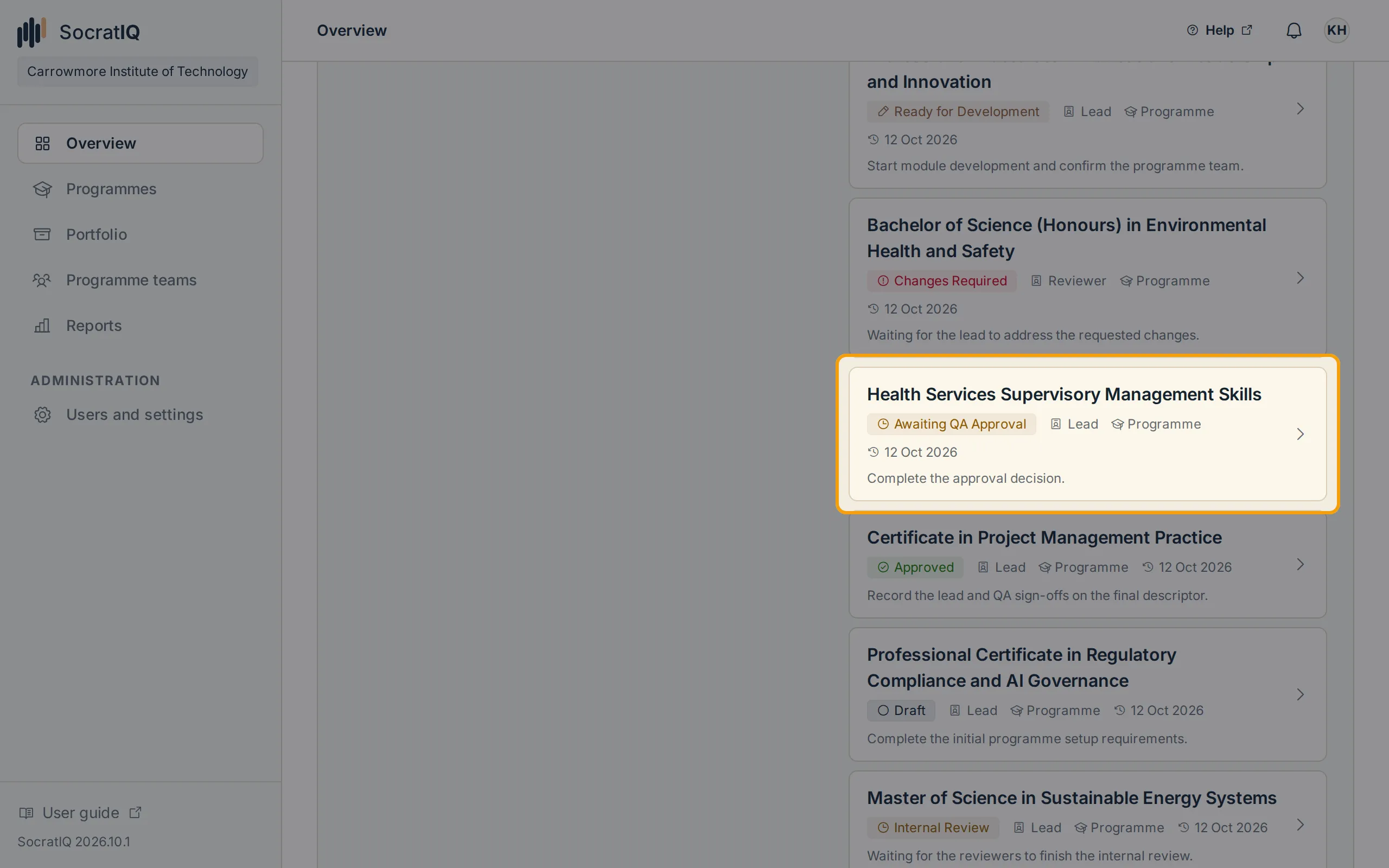
Check the programme or module title, reason, current state, and required next action.
-
Select the item to open the relevant programme, module, or governance section.
An item should disappear when the action is completed or when your assignment is removed. Ask a Programme Lead or Client Admin to check the programme’s team if old work remains visible.
Opening your work
Section titled “Opening your work”-
Select Programmes from the main menu.
-
To work on a module assigned to you, select it under Your modules to open it in Module Studio.
-
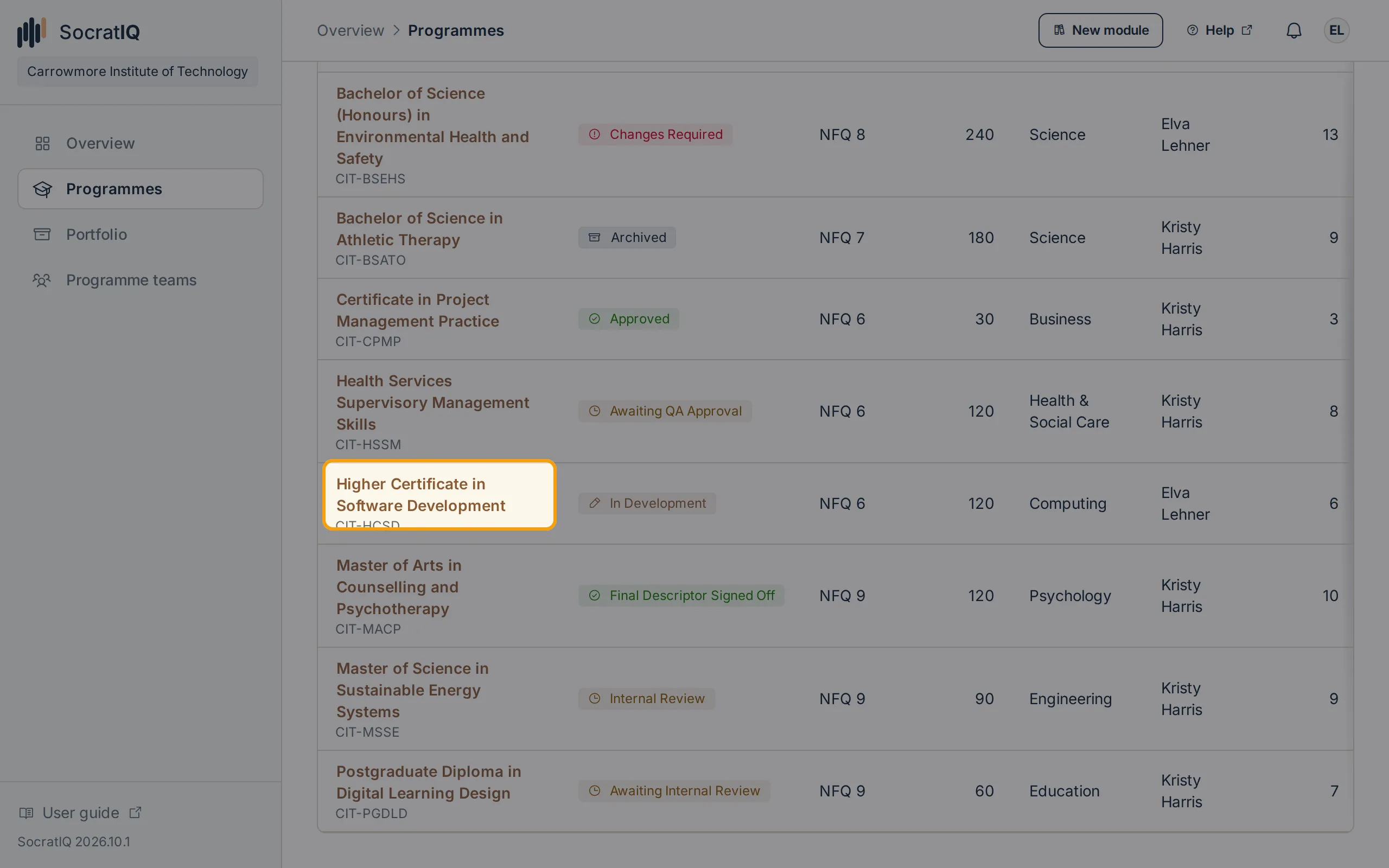
Otherwise, select the programme title to open it when your responsibility permits programme-level work.
-
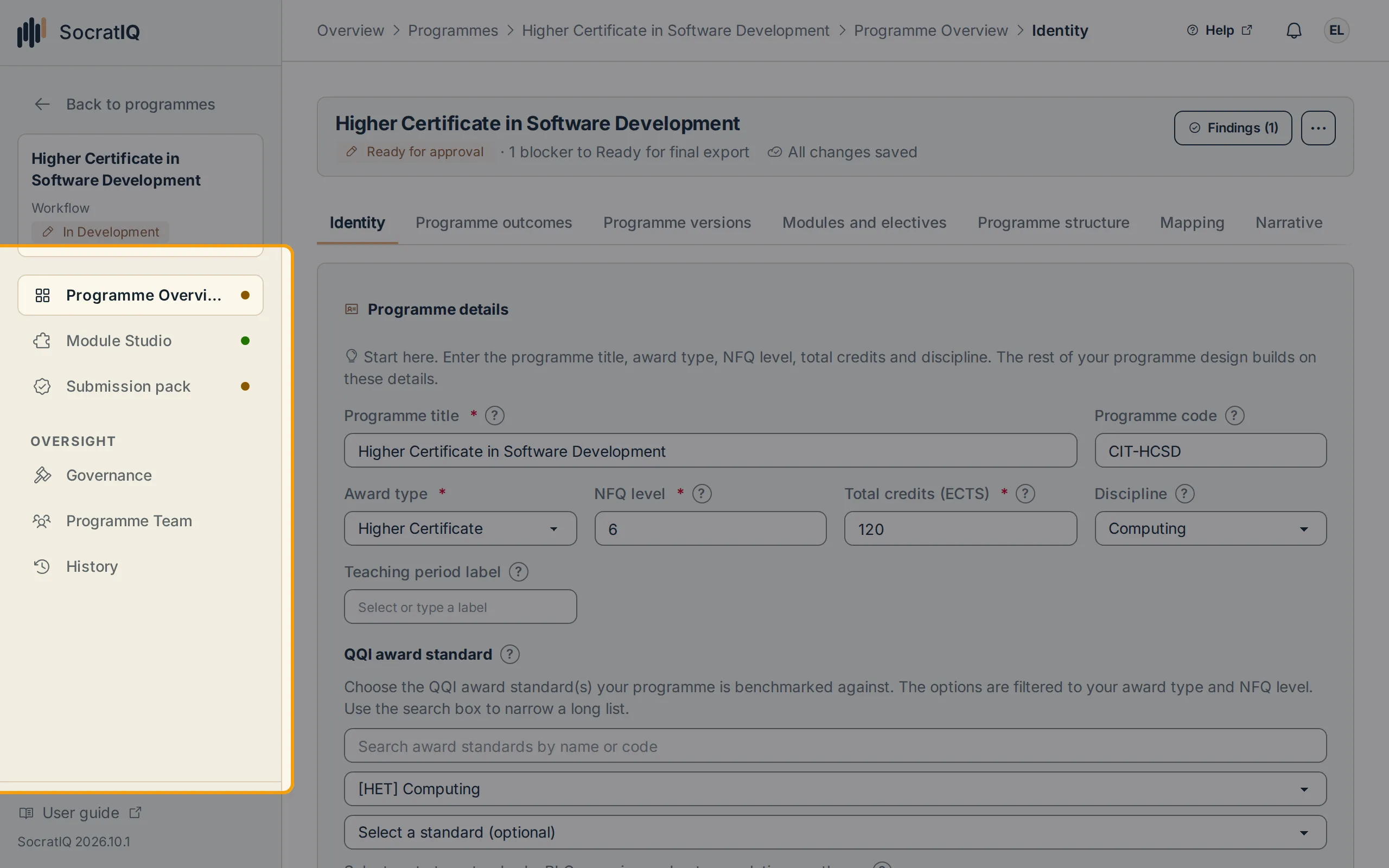
Use the programme sidebar (Programme Overview, Module Studio, Submission pack, Governance, and Programme Team) to move between areas.
-
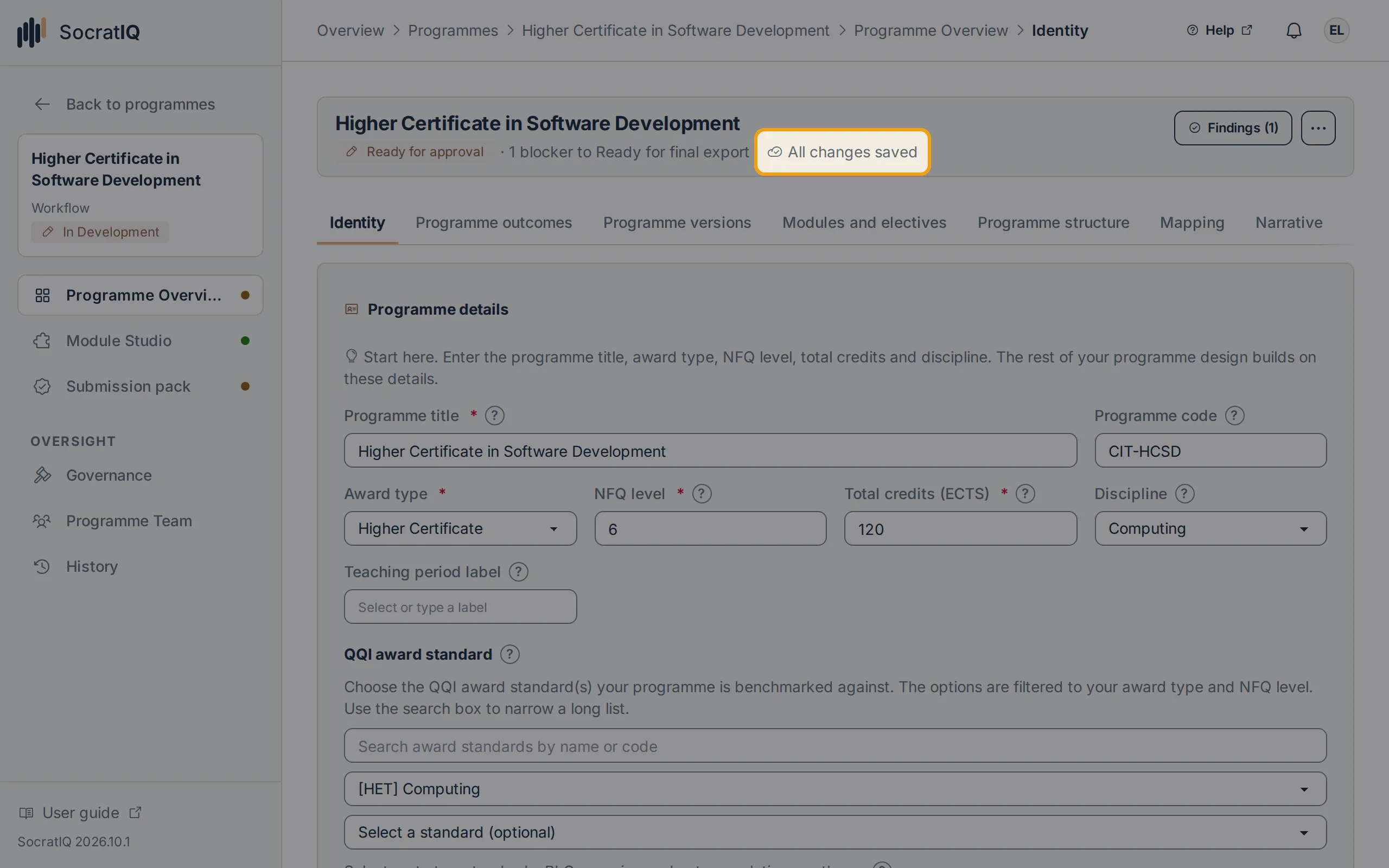
Check the save indicator before leaving edited work. All changes saved confirms that the current revision was stored.
A module that is visible but read-only has not necessarily failed to load. You may have read access without module ownership, or the programme may be in a governed read-only lifecycle state.
Next steps
Section titled “Next steps”- See Programme Development at a Glance for an overview of the full programme workflow.
- See Roles and Access to understand account roles and programme permissions.
- See Troubleshooting if an action or page is unavailable.